Give feedback
Giving feedback should not feel risky or exhausting.
This guide is written for real situations: you want to help someone grow, you want to be fair, and you want your message to be clear. ClarityLoop helps you do that with context, structure, and AI support when you need it.
Continuous feedback how-to
Watch this walkthrough to learn the feedback flow, from choosing the right structure to using context and AI support well.
Why this matters
When feedback is delayed, details fade and conversations become generic. When feedback is continuous, people can connect it to real work moments and act quickly.
In practical terms, continuous feedback helps teams:
- reinforce strong behavior while it is still fresh
- coach earlier, before problems compound
- build trust through specific, evidence-based conversations
Where feedback can begin
You do not need one single entry point. Choose the one that matches your moment.
If you are already in ClarityLoop, open Feedback Hub and start directly.
If someone requested feedback from you, open the request and respond from there.
If your team works heavily in Slack, use the Give Feedback message menu action, Slack shortcuts, or /cl_give_feedback.
If the moment came from delivery tools (like GitHub, Jira, or Confluence), use Add to ClarityLoop so the context is attached from the start.
ClarityLoop can proactively surface feedback opportunities based on recent collaboration signals. When this happens, you may receive a prompt in email, Slack, or in-app notifications (based on your settings).
These prompts are designed to help you act while context is still fresh. When you click the CTA, ClarityLoop can open a pre-contextualized generate flow (with relevant context IDs and often recipient preselected) and auto-draft a first version for you.
The guided flow (step by step)
Step 1: Start with the person and the outcome
Before writing, decide what you want this feedback to do. Are you recognizing something to reinforce? Coaching for improvement? Clarifying impact?
When you are clear on outcome, your wording becomes easier and kinder.
Step 2: Choose the right structure
You do not need to overthink this. Use the structure that makes your message easiest to understand:
- Basic for direct, plain-language feedback
- SBI when you want to anchor in one concrete situation and impact
- SSC when you are giving coaching guidance (start, stop, continue)
- STAR when you need a fuller story from context to result
If you are not sure, start with Basic. Clarity and honesty matter more than template perfection. In the same template selection dialog, you can also choose Generate with AI when you want AI to create the initial draft.
Step 3: Add context so feedback feels fair
This is one of the most important steps. Context keeps feedback grounded in observable work, not memory or mood.
Attach links, notes, screenshots, or work artifacts from connected tools. This helps the receiver understand exactly what you are referring to and why it matters.
If you want help with capture and linking, see Context Capture Overview and Linking Context.
Step 4: Use AI when writing feels hard
AI is most useful when you are blocked, not when you need to hand over thinking.
Use AI to remove writing friction, not judgment:
- You focus on what happened and what you want to communicate.
- AI helps shape it into clear, specific, actionable language.
Use Generate when the page is blank and you need a starting draft. Use Refine when you already wrote something and want it clearer, more specific, and more actionable.
AI can use your instruction plus attached context, which helps connect dots without losing the real work behind the message. In many cases, this turns feedback drafting into a seconds-level first draft plus quick review.
If you want better AI output, give AI the same guidance you would give a thoughtful writing partner:
- What happened
- Why it mattered
- What you want the person to continue or change
- The tone you want (for example: direct, supportive, concise)
Helpful prompt examples:
- "Turn this into kind but direct feedback. Keep it specific and actionable."
- "Use SBI format and focus on one concrete incident from this PR."
- "Make this shorter and more manager-ready."
- "Keep the tone appreciative, but include one growth suggestion."
- "Rewrite this so it is clearer for a junior teammate."
- "Keep the message grounded in what a customer-facing stakeholder would care about."
AI can also help calibrate wording so the feedback is easier to receive while still being honest.
Step 4a: Use voice when that is faster
If writing from scratch slows you down, use speech-to-text when it is available in your workspace. You can speak your first draft, review the transcript, and then refine it before sending.
Step 5: Use Preview as your communication checkpoint
Before sending, open Preview & Send and check:
-
Does this read the way I intend?
Review summary, detail, structure, values, and context together. -
Do I want an informal pre-share first?
In Preview, you can copy your draft for Slack or Email.
This is useful when you want a lightweight check-in before formally sending in ClarityLoop.
If you share outside ClarityLoop, keep this in mind:
- Copy for Slack/Email prepares shareable text, but does not send feedback in ClarityLoop.
- External sharing does not change ClarityLoop visibility settings.
- The official record, audience controls, reactions, and insights come from the feedback you send in ClarityLoop.
-
Who should see this feedback?
Choose audience carefully: recipient only, recipient + manager, manager only, or public workspace sharing.
If you are responding to a feedback request, audience settings may already be defined by that request flow. -
Is the sentiment aligned with the message?
Set or adjust sentiment in Preview so tone and meaning match.
Step 6: Send, then close the loop
After sending, recipients are notified based on their notification preferences (email/Slack/in-app). If the feedback is a response to a request, the request state updates accordingly.
Visibility and sharing settings
This is one of the most important parts of feedback quality and trust: the right people should see the feedback, at the right time.
Send-time visibility options
When you send feedback, you can choose:
-
Recipient only Best default for direct feedback conversations.
-
Recipient + manager Useful when manager context helps coaching and follow-through.
-
Manager only Useful for sensitive coaching input you want a manager to handle first.
-
Public workspace sharing Use this when the feedback is recognition or learning that should be visible across the workspace. Public sharing creates a workspace highlight. If your Slack highlights channel is configured, public feedback can also be posted there.
-
Hide my name Available for non-public sharing modes. This helps when candor matters and identity protection is needed.
Public sharing does not support anonymous mode.
Share later (after feedback is already sent)
ClarityLoop also supports controlled visibility expansion later:
-
Recipient can share with manager later If feedback was initially private, the recipient can choose Share with my Manager from the received feedback view (when they have an active manager).
-
Manager can share with direct report later If feedback was shared only with the manager, that manager can choose Share with direct report later.
This helps teams phase sensitive conversations without losing context.
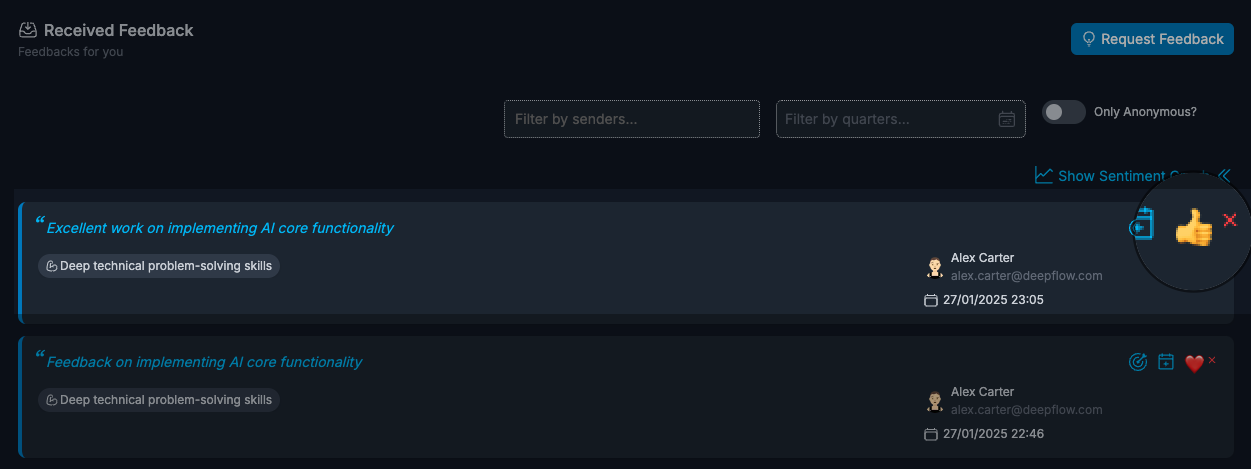
React to feedback
Reactions give recipients a fast, low-friction way to acknowledge feedback. This is useful when someone wants to respond quickly now and follow up in more detail later.
A reaction helps by:
- confirming the feedback was seen
- signaling whether the message resonated
- keeping the feedback loop active between sender and recipient
What happens after sending: from message to insight
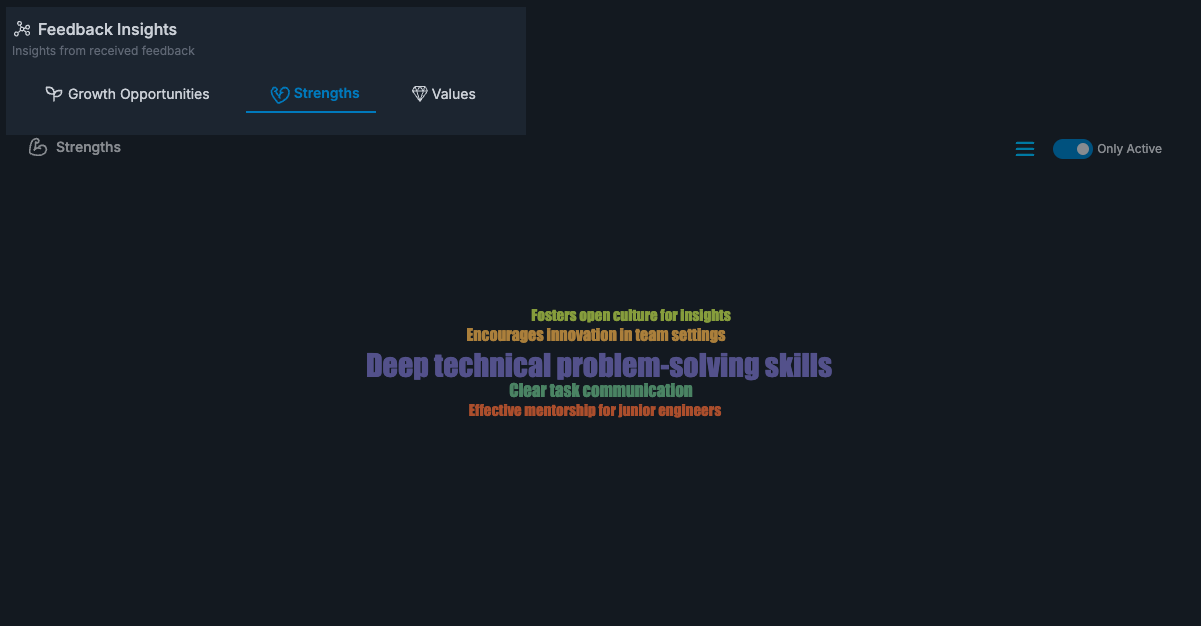
One feedback message is helpful. Consistent feedback over time becomes insight.
ClarityLoop can use shared and analyzed signals to surface:
- recurring strengths
- growth opportunities
- sentiment trends
This is where coaching gets easier, because you are no longer relying on isolated examples.
Feedback-like signals from 1:1s and notes
In ClarityLoop, insights are not limited to manually sent feedback. The system can also analyze certain contextual signals, such as:
- collaboration comments around work context
- manager-authored notes from 1:1 conversations
These are treated as analysis inputs for growth patterns (for example, strengths and opportunities), so important coaching signals are less likely to be missed.
This does not replace explicit feedback. It complements it by turning everyday coaching evidence into structured insight.
Notifications that keep feedback moving
Good feedback systems reduce delay, not just documentation work. ClarityLoop notifications are designed to help you respond at the right time, with the right context.
-
New feedback request alerts You get notified when someone requests your feedback, with a direct path to respond.
-
Reminder nudges If a request is still pending, a requester or manager can nudge selected recipients to follow up.
-
Opportunity prompts from recent collaboration ClarityLoop can identify moments that may be worth capturing as feedback and send a prompt to act on them.
When you click one of these prompts, ClarityLoop can open the generate flow with context pre-loaded and auto-draft feedback for that moment.
Example weekly prompt style:
🌟 Highlights
Turn coaching moments into shareable feedback
You left thoughtful comments that helped a teammate move work forward.
Generate feedback →
- Channel control You can manage delivery by channel in notification settings (email, Slack, in-app), so alerts fit your workflow.
FAQs
Can I start feedback from Slack?
Yes. Use the Slack Give Feedback message menu action, Slack shortcuts, or /cl_give_feedback.
Can I give feedback from connected tools like Jira or GitHub?
Yes. Use Add to ClarityLoop to attach work context, then continue in ClarityLoop.
Can I respond to a feedback request from a notification?
Yes. Request notifications and nudges include a direct path to respond.
Can AI write the first draft for me?
Yes. Use Generate to create a draft, then edit before sending.
Can I share the draft informally before sending in ClarityLoop?
Yes. In Preview, use Copy for Slack or Copy for Email to share it informally first.
Can I set sentiment while sending feedback?
Yes. In Preview, you can adjust the sentiment score before final send.
Can I share feedback publicly with the whole workspace?
Yes. Choose public workspace sharing in Preview. This creates a workspace highlight.
Can visibility be expanded later after sending?
Yes. Recipients can share eligible feedback with their manager later, and managers can share manager-only feedback with a direct report when appropriate.
Will ClarityLoop notify me when it detects good moments to give feedback?
It can surface feedback opportunities through weekly pulse notifications (email/slack, based on your settings).
Can I keep feedback as draft and send later?
Yes. Drafts are editable and can be sent when ready.
Can I add context later?
Yes, while feedback is still in Draft. Sent feedback has limited edit options.
What if I sent feedback to the wrong audience?
Open the feedback and use Mark Feedback as Cancelled, then create and send an updated one.
Can people react to feedback?
Yes. Recipients can react, and reactions are visible to the sender.
Next steps: