Request feedback
Asking for feedback should feel practical, not awkward.
This guide helps you ask at the right moment, from the right place, with enough context that people can respond clearly and quickly.
Why continuous requests matter
When you request feedback regularly, people respond with real examples instead of vague memory. That makes feedback more useful, more fair, and easier to act on.
In simple terms: shorter loops create better coaching conversations.
Where a feedback request can start
You can start from whichever workflow you are already in:
-
In ClarityLoop Go to Feedback Hub and open Request Feedback. Managers can also request feedback about a direct report from the team member page.
-
In Slack Use the Request Feedback message menu action (on a Slack message) or
/cl_request_feedback. If you start from a message, that collaboration context can be carried into the request flow. -
From connected tools Use Add to ClarityLoop from supported tools and then choose New Feedback Request or add context to an existing draft request.
The guided flow (step by step)
Step 1: Choose who you are asking
Select one or more recipients who directly worked with you (or with your direct report, if you are a manager). Strong requests start with the people who saw the work firsthand.
Step 2: Write a clear ask
Use a short summary and a practical description:
- what you want feedback on
- what period or project this is about
- what kind of input would help most
This gives recipients enough direction without over-controlling their response.
Step 3: Attach context so responses are specific
Add links, notes, tickets, docs, PRs, or other concrete work references. Context is what turns “general opinion” into “useful, evidence-based feedback.”
For capture guidance, see Context Capture Overview and Linking Context.
Step 4: Use AI to remove writing friction
If you are stuck on wording, use AI:
- Generate: creates a first draft request
- Refine: improves a draft you already wrote
In the AI draft dialog, you can provide:
- an instruction
- recipients
- context links
- optional growth opportunities, strengths, and values
ClarityLoop uses that context to draft high-quality text, so you can focus on what you want to ask, not how to phrase every sentence.
Step 5: Send now or keep draft
- Save as Draft keeps the request editable
- Send shares it with recipients
Before sending, you can suggest a response format:
- No Preference
- SSC
- SBI
- STAR
This suggestion guides response quality without forcing people into rigid wording.
Step 6: Track responses and follow up
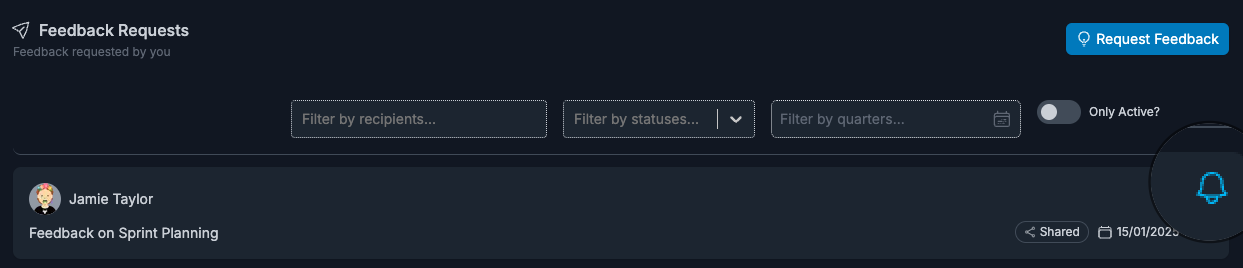
In Requests Sent, you can track who has responded and who is still pending. If needed, use Nudge to remind selected recipients.
Nudges are sent as follow-up notifications (email and Slack, based on user/workspace setup).
ClarityLoop is designed to help you capture moments before they are forgotten.
You may receive email/Slack prompts when:
- a new feedback request needs your response
- someone nudges a pending request
- the system surfaces a strong collaboration moment worth turning into feedback
Visibility and sharing behavior
How responses are shared depends on who initiated the request:
-
If you request feedback for yourself Responses are shared with you.
-
If a manager requests feedback about a direct report Responses are initially shared with the manager.
-
Later sharing can still happen when appropriate Recipients can share eligible feedback with their manager later. Managers can also share manager-only feedback with their direct report later.
This allows sensitive feedback to be phased responsibly instead of forced into one visibility choice.
FAQs
Can I ask multiple people in one request?
Yes. Add all recipients and send once.
Can I edit a request after sending?
No. Sent requests are locked. You can mark one as Cancelled and create a new request.
Can I add context later?
Yes, while the request is still in Draft.
How do I know who has replied?
Use Requests Sent to see per-recipient response status.
Can I request feedback from Slack?
Yes. Use the Request Feedback message menu action or /cl_request_feedback.
What does template suggestion do at send time?
It guides how recipients structure their response (No Preference, SSC, SBI, STAR).
Can recipients respond directly from notifications?
Yes. Request and nudge notifications include a direct link to respond.
Next steps: