Survey insights
Survey insights help you move from raw responses to focused decisions. This page explains access, filters, tabs, and practical interpretation.
Who can access insights
Insights are available to:
- survey owners
- leaders who were explicitly added to that survey
Leaders see scoped team insights, and visibility can be gated by minimum response thresholds. For workspace owners and People/HR teams, this view is especially useful for cross-team pattern tracking and follow-through planning.
Start with scope filters
Before reviewing results, set the scope you want:
- Time period (one run or multiple runs)
- Reporting line
- Department
These filters apply to cards, tabs, and exports.

Know when insights are locked
Insights are locked when there is not enough data to share safely.
Typical cases:
- no responses yet
- leader view with a configured minimum-response threshold that has not been met
Summary tab
Summary gives a fast read on survey health:
- Response Rate
- Engagement Score (from Likert-style questions)
- Sentiment Analysis (AI generated) from text responses
- eNPS Score when eNPS questions exist
- Emerging focus areas to highlight recurring patterns
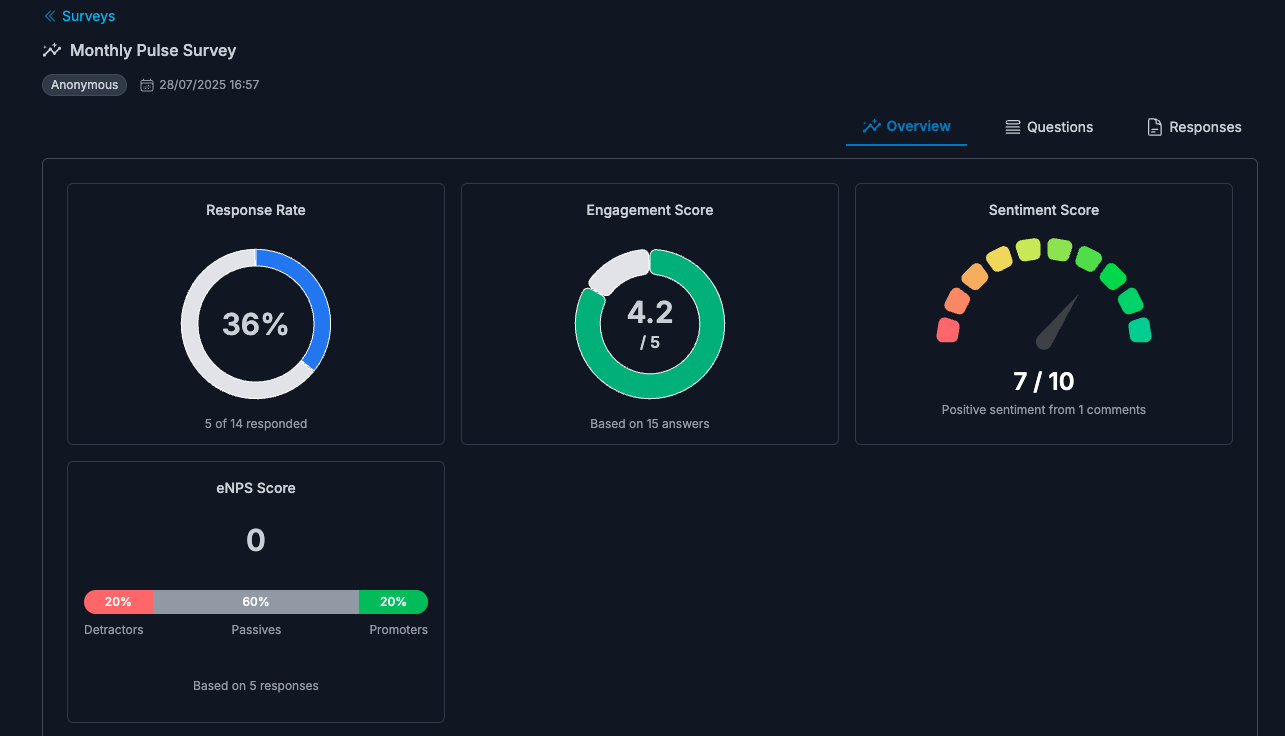
Use this tab to identify where to dig deeper, not to finalize decisions in isolation.
Question Insights tab
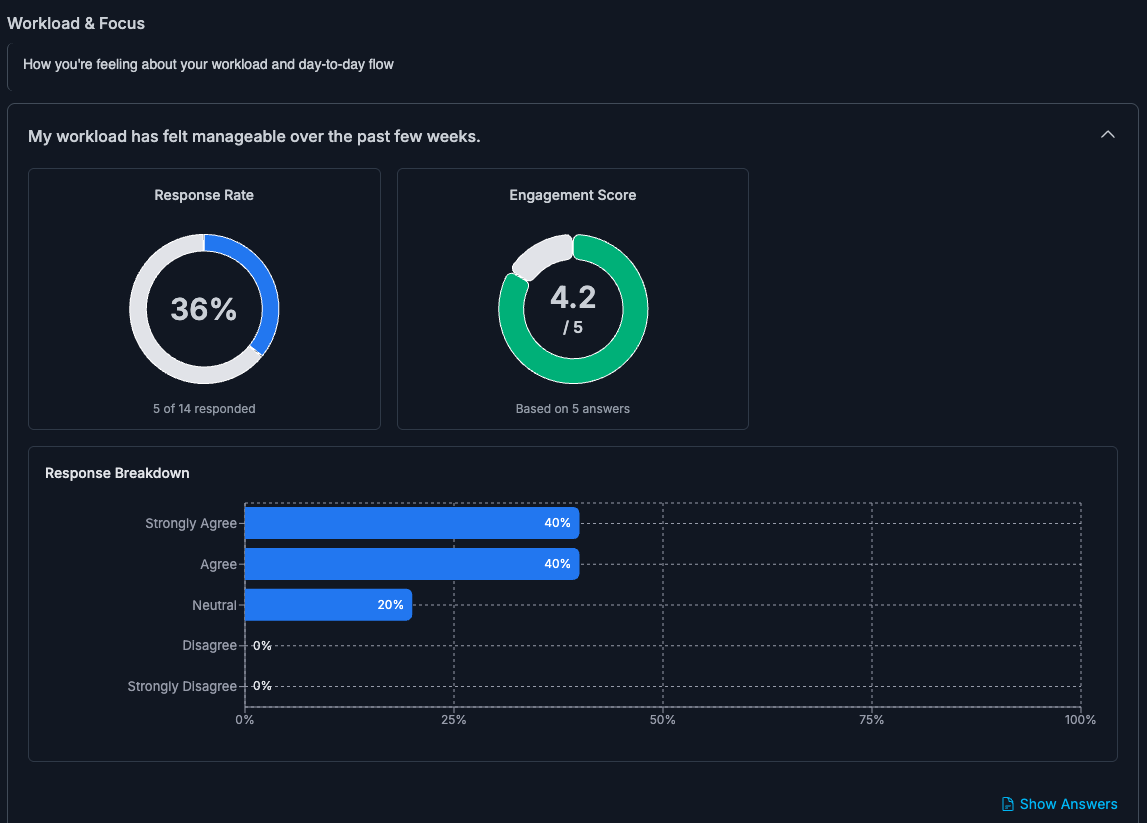
Question Insights breaks results down per question with:
- option distribution
- question-level cards and trends (when multiple runs are selected)
- question topics and focus areas
- View Responses drill-down for detailed context
Topic Insights tab
If questions are tagged with topics, Topic Insights aggregates those questions into a single view.
This is useful for focus areas like manager clarity, workload sustainability, or recognition gaps, where signal is spread across multiple questions.
Individual Responses tab
Use this tab when you need answer-level context.
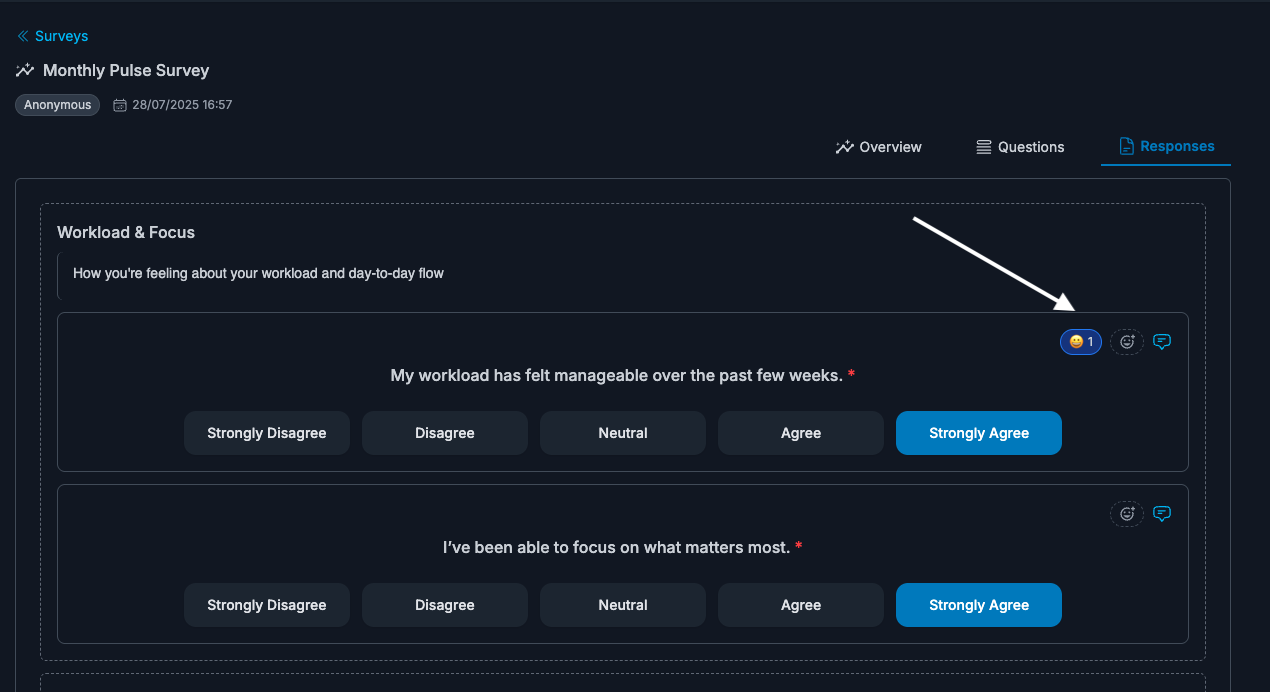
You can review shared responses in detail and use reactions/comments where permitted (for owners and leaders, including managers added as leaders for that survey).
React and comment on responses
Reactions and comments are available in response detail views to help leaders acknowledge feedback and keep follow-up visible.
In practice:
- survey owners can react/comment
- leaders added to the survey can react/comment
- managers can react/comment when they have leader access to that survey scope
In anonymous surveys, identity remains hidden and follow-up stays focused on the response content and patterns.
Comments tab
If survey questions allow comments, the Comments tab gives a focused view of respondent comments.
You can filter comments by:
- all commentable questions
- topic
- specific question
This is the fastest way to inspect qualitative feedback at scale.
Export insights
Use Export Insights to download current insights.
Exports respect your active filters, so you can prepare leader- or department-specific reports without manual cleanup.
Read trends responsibly
When comparing runs:
- validate response rate first
- look for sustained movement across runs, not one spike
- combine score changes with response text before choosing actions
- treat AI sentiment/focus areas as decision support, not as the only evidence