Hiring
Hiring helps your team move from "we need someone" to "this person is ready to join" without losing context along the way.
Use this page as the entry point. If you are actively hiring, start in Hiring Pipeline, the working board for each job.
Where to start
Set up or run a job.
Use Set up the job. This is where you create the opening, add stages, assign owners, publish the job, and work candidates.
Request approval for a role.
Use Request approval for a new role before creating the job.
Review applicants day to day.
Use Manage candidates to move people forward, add notes, schedule interviews, and keep status current.
Review one candidate in detail.
Use Review one candidate in depth. Candidate profiles collect resume, notes, history, ratings, interviews, and email activity.
Collect answers or email candidates.
Use Use questionnaires for structured candidate answers and Email candidates and use templates for consistent candidate communication.
Publish or share roles.
Use Publish a job and collect applications and Share the careers page and feeds.
Manage access, exports, or admin responsibilities.
Use Roles & Permissions.
Basic hiring flow
Most teams can start with this sequence:
- Create a Hiring Request if the role needs approval.
- Open Hiring Pipeline to create or open the job.
- Add the company, location, hiring team, and a simple set of stages.
- Publish the job on the Careers Page if applicants should apply themselves.
- Use Hiring Pipeline to move candidates, add notes, send emails, and schedule interviews.
- Open Candidates when you need deeper profile detail, export, activity, history, ratings, or mail log.
- Move the successful candidate into a Hired stage, then invite them to ClarityLoop and continue in Onboarding.
You do not need to use every area on day one. A small setup with one job, a clear pipeline, and assigned owners is usually enough to start.
How the main pages fit together
- Hiring Pipeline: the working board for setting up a job and moving candidates through stages.
- Jobs Library: a list view of jobs, useful when you want to review many jobs at once.
- Stages: a broader stage-management page, useful when you need to review or edit stages outside one Hiring Pipeline board.
- Candidates: the detailed candidate list and profile area.
- Careers Page: the public page candidates use to view and apply for jobs.
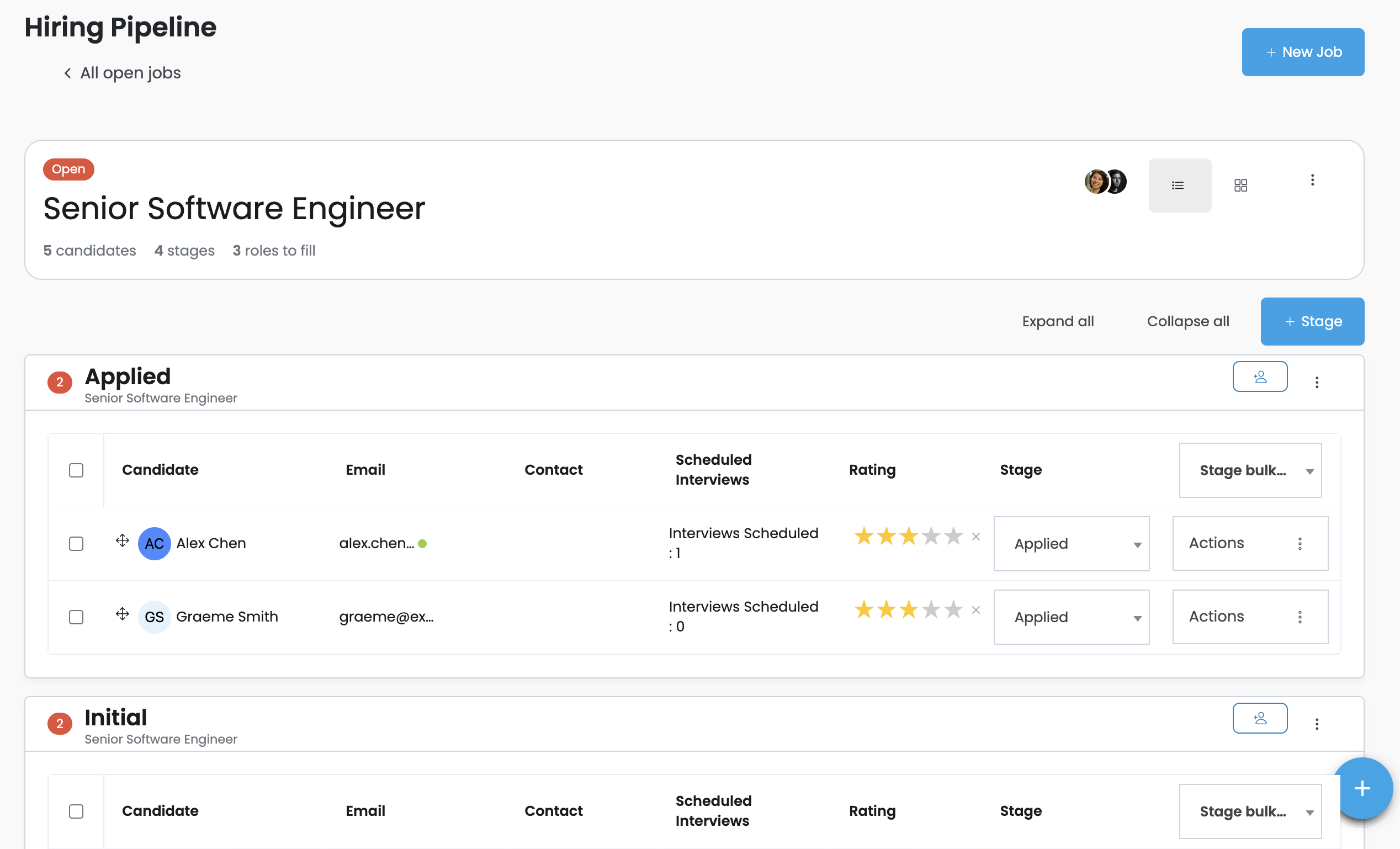
Publishing a job makes it eligible for the public Careers Page. Candidates can see and apply to it when the job is active, published, and not closed. Closing a job stops public applications without deleting the job, so you can reopen it later if needed.
What good looks like
A healthy hiring process has a few visible signs:
- each active job has an owner
- every candidate is in the right current stage
- notes explain why important decisions were made
- interviews are scheduled and completed in the candidate context
- rejected or inactive candidates are moved out of active stages
- hired candidates are handed into onboarding promptly
- admins can answer access questions without guessing
Next steps
- Hiring workflows: run hiring from request to onboarding.
- Roles & Permissions: understand what each type of user can access.
- Hiring reference: learn what each Hiring area does in more detail.