Survey settings
Use Survey Settings to decide how a survey runs in the real world: who gets it, when it goes out, how private it is, and who can view results.
Open settings
From a survey editor, open the survey menu and select Survey Settings.
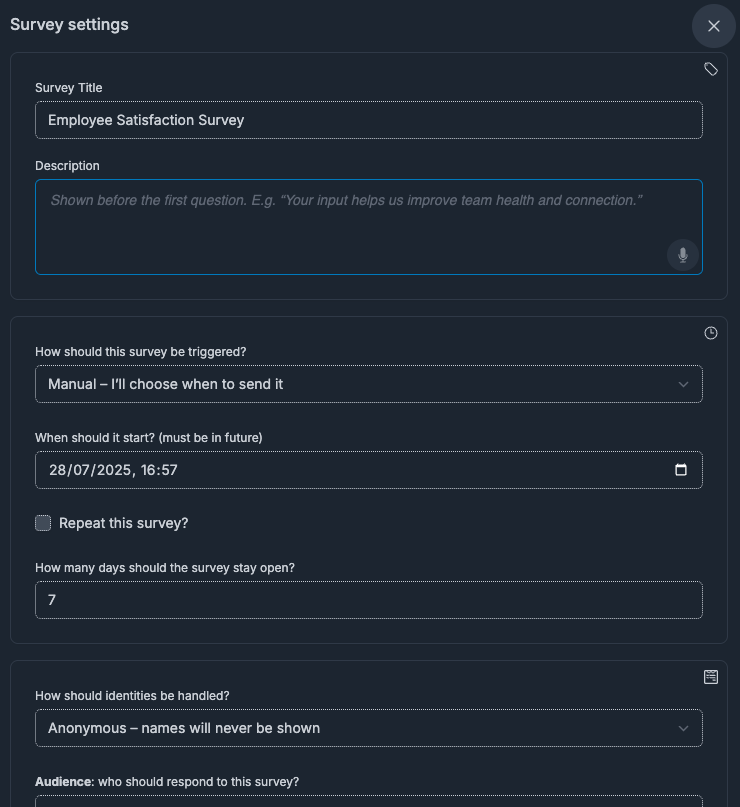
Role-based controls
- Workspace owners can configure all trigger options, wider audience options, and leader visibility controls.
- Managers can configure settings within their available scope (for example, direct reports or selected users).
Basics
- Survey title is required.
- Description is optional and appears before the first question.
Schedule and trigger
Trigger type
You can choose:
- Manual
- Onboarding: start (Day 1), Day 30, Day 60, Day 90
- Offboarding: start (Day 1), Day 30, Day 60, Day 90
Use lifecycle triggers when you want surveys to go out automatically as people join or leave. Use manual when you want direct control of send time and cadence.
Manual survey options
When trigger is Manual:
- set Start date & time
- optionally enable Repeat this survey
- define recurrence with the repeat cadence control
Response window
- Set Response window (days) to control how long each recipient can respond.
- Leave blank to keep it open.
Pulse question limit
When a manual survey is recurring, you can set a Pulse question limit. This sends only a subset of questions per person per run and rotates coverage over time.
It is useful for keeping recurring surveys lightweight without losing broader question coverage.
Privacy and audience setup
Response identity mode
- Anonymous: names are never shown
- Identity optional: respondent chooses at submit time
- Identity required: responses include names
Audience type
Audience options depend on role and can include:
- everyone in the workspace
- direct reports
- selected department(s)
- specific individuals
Department targeting note:
- only people with assigned levels are included
Access and result visibility
For owner-managed surveys outside direct-report mode, you can configure:
- additional owners who can manage the survey
- leaders who can view scoped team results
- minimum responses before leaders can view results
That minimum response threshold is important for protecting anonymity at team level. It also affects who can engage with responses, because reactions/comments are available from those response views.
What happens if the survey already ran
If a manual survey already has a previous run:
- audience or timing changes may require a new future send time
- current-run operational changes should be done in Run Overview
- structural or future-send changes should be saved in settings
Before you publish
Check these first:
- audience exists
- non-info question exists
- schedule/trigger is valid
Live-run actions are in Run Overview
Settings are for design and future delivery. For active run operations, use Run Overview to:
- add recipients
- extend run window
- close run now