Linking Context
Linking context means attaching evidence to the workflow item you are working on. Use it when you already have evidence and want it connected to the right draft.
Use this when...
- You are drafting feedback, a feedback request, a 1:1 agenda item, or an OKR update.
- You already have evidence and want to attach it now.
If you need the full capture model first, start with Context Capture Overview.
Where you can link context
- Feedback drafts
- Feedback request drafts
- 1:1 agenda items
- OKR comments and updates
Ways to link context
1. Link while editing
- Open the item draft.
- Use the context panel.
- Add links or files/screenshots.
- Or pick existing items from Work or Notes.
2. Link from source tools
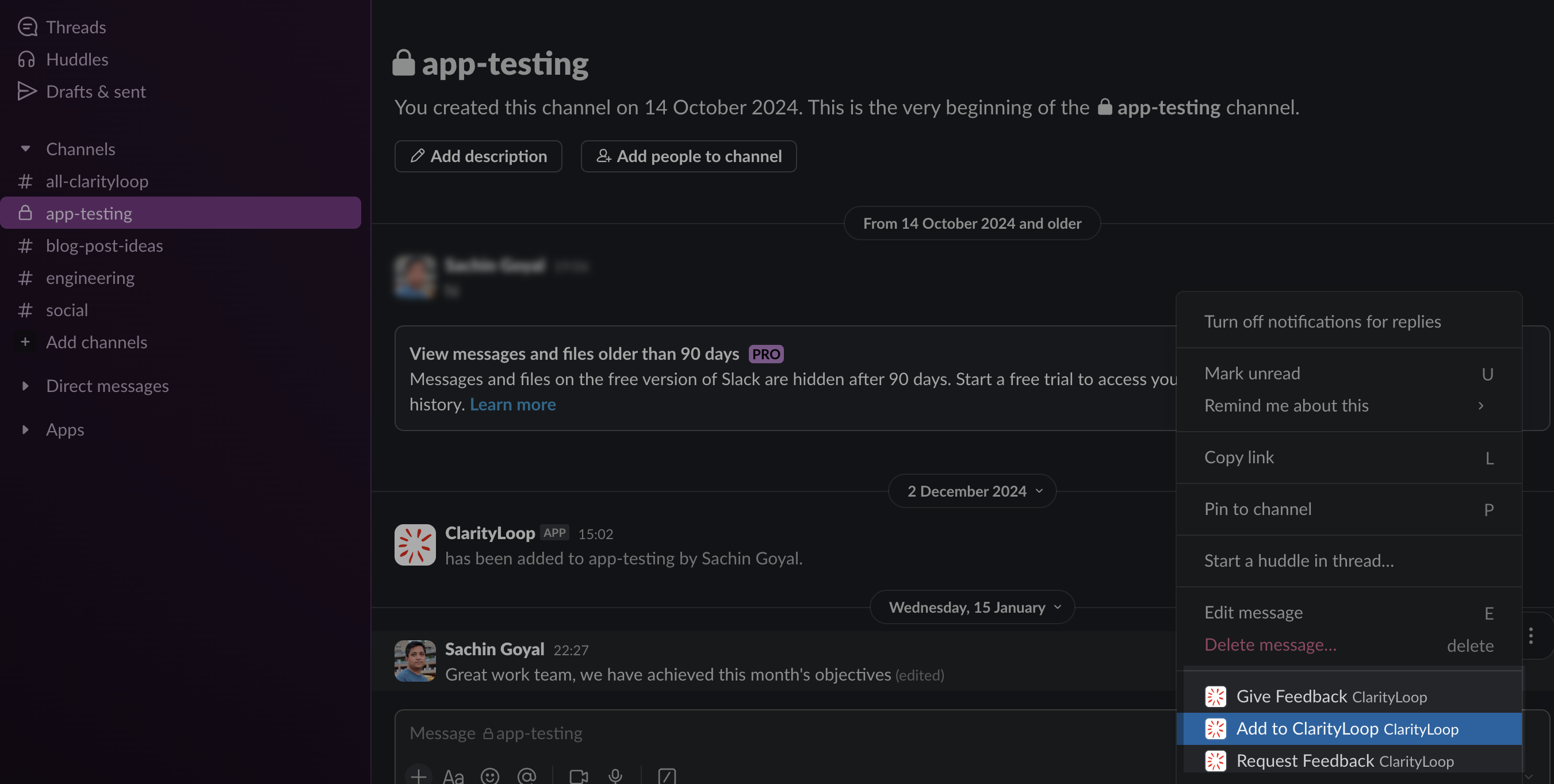
- In supported integrations, use Add to ClarityLoop.
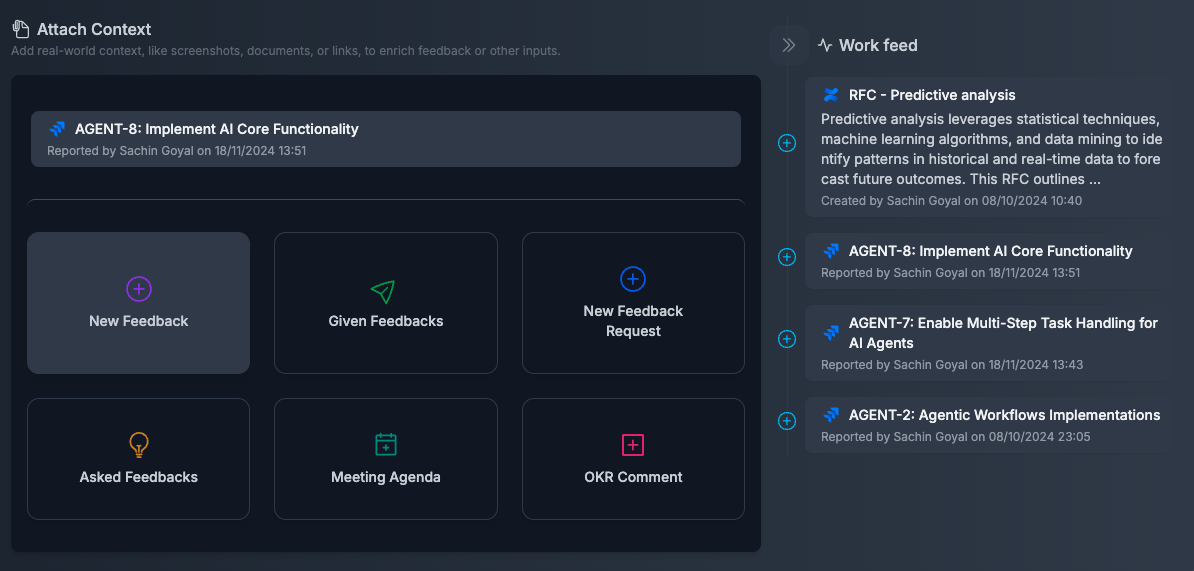
- Choose a destination (feedback/request/1:1/OKR).
- Review metadata and confirm.
- If the integration is connected, ClarityLoop can auto-pull source work-item details so linking is faster.
Example flow:
- Click Add to ClarityLoop in the source tool (for example, Slack).
- In ClarityLoop, choose where to attach it (feedback, request, 1:1, or OKR).
3. Link from notes
- Open You -> Notes, open the note menu, and click Add to....
- Choose the destination workflow item and confirm.
- You can also attach the note from the context panel while editing a draft.
- See Notes overview.
What you can link
- URLs from integrated tools
- Work-feed items
- Notes
- Uploaded files/screenshots
Common sources
- Slack messages
- Jira issues
- GitHub pull requests
- Confluence pages
- Notes and captured items
- Uploaded files/screenshots
Editing rules
- Context is optional for feedback and requests.
- For feedback and feedback requests, context is editable while the item is in Draft.
- After sending, editing rules depend on that workflow.
Best practices
- Attach only what supports the point you are making.
- Prefer original source links when possible.
- Use screenshots when visual state matters.
- Start from integrations when available to reduce manual work.
FAQs
Can I add transcripts from meeting assistants (for example, Granola)?
Yes. You can paste transcript excerpts into notes or draft context fields, and you can also upload screenshots/files when needed.
What is a shared work thread in ClarityLoop?
It is reusable evidence of day-to-day work (from integrations or manual capture) that you can attach to feedback, 1:1s, and goals.
Is context required?
No, but it usually improves quality.
Can I add context later?
Yes, while the item is still editable (for feedback/request, that means draft state).
Does ClarityLoop understand screenshots?
Yes. Image context can be summarized to structured metadata.
Next steps: