Hiring Reference
Use this page when you want details about a specific Hiring area.
For the shortest path through the process, start with Hiring workflows.
How to use this guide
This page is organized by product area. Use it when you need to understand what a page, field, or status means.
For role-based guidance, see Hiring Roles & Permissions.
Dashboard
The Dashboard gives a high-level view of hiring activity.
Use it to review:
- open jobs
- open seats
- hires
- candidate status mix
- source of hire
- stage cycle time
- pipeline health
Hiring managers and stage owners may see the jobs and candidates they are responsible for. Users with broader recruitment permissions can see the wider hiring picture.
Hiring Requests
Use Hiring Requests when a role should be approved before it becomes an active job.
Each request includes:
- title
- description
- open positions
- company
- expected start and end date
- approvers
Request statuses include:
RequestedApprovedRejectedCancelledConverted
Approvers each have their own approval status. A request becomes effectively approved when all selected approvers approve it. An approved request can be converted into a job.
Hiring Pipeline
The Hiring Pipeline is the main workspace for active hiring.
Use it to:
- create or open a job
- update job setup in context
- add and update stages
- view candidates by stage
- reorder candidates
- move candidates between stages
- add candidates to a stage
- add notes
- send emails
- schedule interviews
- rate candidates
- add candidates to talent pools
- close or reopen a job when appropriate
The pipeline is best for day-to-day hiring because setup and candidate movement happen in the same place.
Jobs Library
Use Jobs Library when you want a list-style view of jobs or need to manage jobs outside the pipeline.
A job controls:
- title and description
- hiring team
- company
- start and end date
- open positions
- skills
- locations
- questionnaires
- public careers page publishing
- LinkedIn publishing settings, when configured
- application reply
- photo and resume requirements
A job appears on the public Careers Page when it is active, published, and not closed. Keep the linked open positions accurate so candidates and hiring teams understand which role the job covers.
Publishing a job
Published on Careers Page means the job is allowed to appear publicly.
For candidates to apply publicly, the job must be:
- active
- published on the careers page
- not closed
Publishing is useful when you want applicants to find the role on the hosted careers page, an embedded careers page, or downstream feeds. The job should also be mapped to the right open positions before you share it.
Job description formatting
Job descriptions can be shown in several public places, including the hosted careers page, embedded careers pages, RSS feeds, and LinkedIn feeds.
When pasting a job description:
- paste plain text when possible
- remove copied formatting from Word, Google Docs, Notion, or websites
- use simple headings, lists, and paragraphs
- avoid tables, complex layouts, large fonts, unusual colors, or hidden styling
- use a clean body style such as Arial at about 11px if you need explicit formatting
Clean descriptions are easier to read and less likely to look inconsistent when embedded in a company website.
Closing, reopening, archiving, and deleting jobs
These actions mean different things:
- Close: stops the job from accepting public applications while keeping the job available to reopen.
- Reopen: makes a closed job available again, as long as it is otherwise active and publishable.
- Archive: marks the job inactive and hides it from active working views.
- Delete: permanently removes the job when deletion is allowed. Deletion may be blocked if the job is already used by protected related records.
Use Close when hiring has paused or the vacancy is filled. Use Archive when the job should leave active views but you may still need the record. Use Delete only when the job should be permanently removed and deletion is allowed.
Stages
Stages define the journey candidates follow for each job.
Most teams add and adjust stages from Hiring Pipeline while setting up or working a job. Use the separate Stages page when you need a broader stage-management view.
Common examples:
- Applied
- Screening
- Test
- Interview
- Offer
- Hired
- Cancelled
Stage types include:
InitialAppliedTestInterviewCancelledHired
The stage type matters because it affects candidate status. Moving a candidate to a Hired stage marks them as hired. Moving a candidate to a Cancelled stage marks them as cancelled.
Keep stages short and clear. A practical pipeline is easier for hiring teams to update consistently.
Candidates
Use Candidates when you need the full record for a person.
The candidate list supports searching, filtering, card/list views, export, archive, and delete actions depending on permissions.
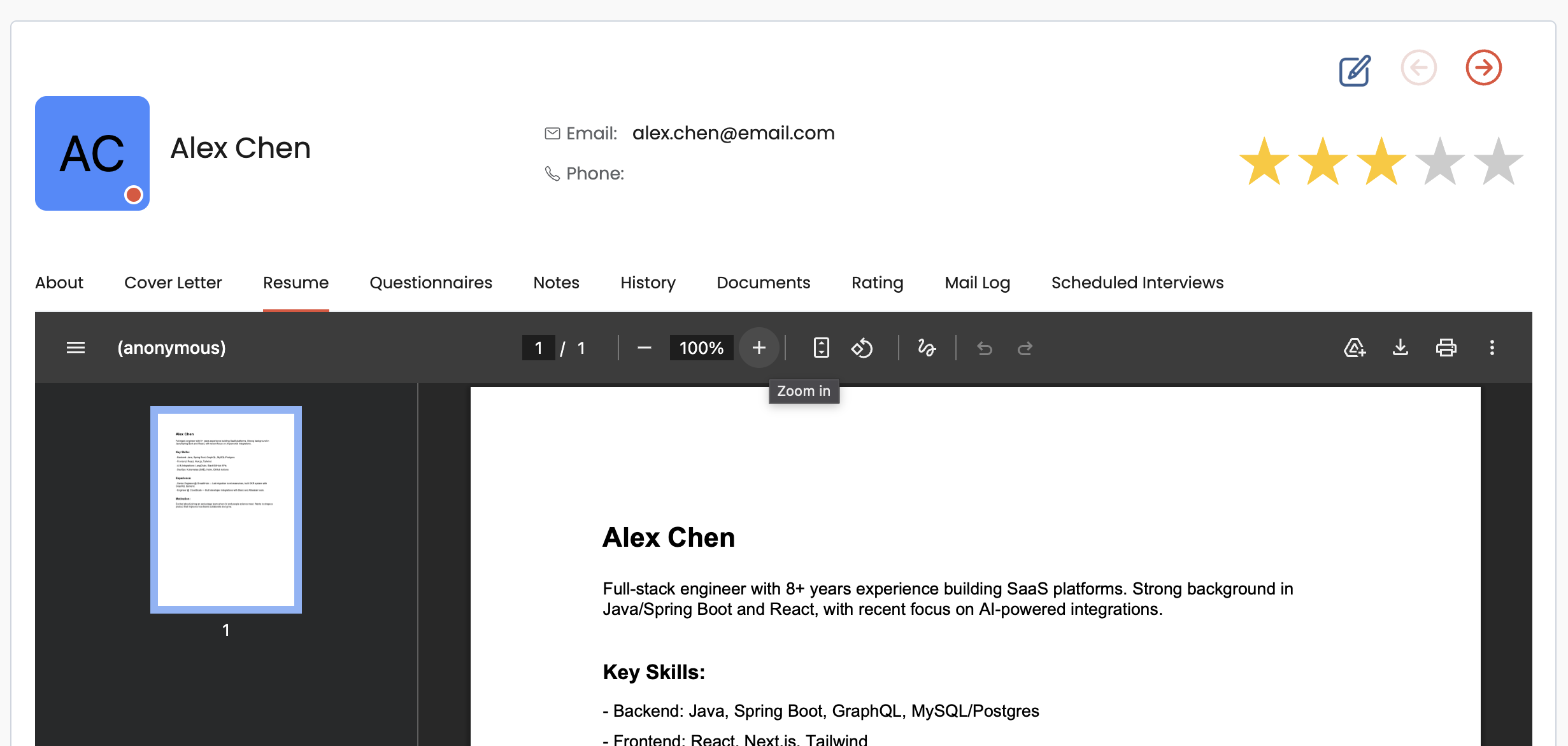
The candidate profile can include:
- personal details
- job and stage details
- resume and cover letter
- referral details
- questionnaire activity
- notes
- history
- rating
- mail log
- scheduled interviews
- offer or hired status
- linked employee after conversion
Candidate email must be unique within a job.
Candidate Activity tab
The Activity tab is designed for users who need a broad operational view, such as workspace owners, HR admins, recruiters, or people ops users.
It shows:
- candidate name and email
- job
- applied date
- source
- current stage
- hiring team
- days in current stage
- last email
- email count
- interview status
- questionnaire status
Use Activity when you need to spot stalled candidates, missing follow-up, interview gaps, or questionnaire bottlenecks across many people.
Exporting candidate data
Candidate data can be exported from candidate views, including selected candidates and activity-related fields.
Use export for:
- operational reporting
- audit support
- spreadsheet review
- handoff to approved hiring or people operations stakeholders
Because exports can include personal information, only export the fields you need and share files carefully.
Archived, deleted, and cancelled candidates
These statuses/actions are not the same:
- Archived candidate: the candidate is marked inactive and hidden from active candidate views. The record can be unarchived.
- Deleted candidate: the candidate record is permanently removed when deletion is allowed. Deletion may be blocked if protected related records exist.
- Cancelled candidate: the candidate has been moved into a stage with the Cancelled type. This is the hiring outcome/status, not the same as archiving or deleting the record.
Use Cancelled when the person is no longer progressing for that job. Use Archive when you want to reduce active list noise while keeping the record. Use Delete only when the record should be permanently removed.
Notes, history, and mail log
Use these areas to preserve context:
- Notes: recruiter, manager, and interviewer context
- History: stage and record changes over time
- Mail Log: emails sent to the candidate
This is especially important when multiple people are involved in one decision.
Emails and templates
Hiring teams can email candidates from Hiring Pipeline or from the candidate context.
Use email for:
- follow-up messages
- questionnaire links
- interview details
- application replies
- rejection or next-step messages
Users can write a one-off email or start from an existing template. Templates can also be attached to jobs as the Application Reply, which is the email and success-page message candidates receive after applying.
Only Workspace Owners can create or update shared email templates. This keeps candidate communication consistent and prevents teams from accidentally changing messages used across the workspace.
Email template variables
Email templates support variables in both the subject and body. Variables are written in double braces, such as {{ instance.get_first_name }}.
Useful candidate email variables include:
{{ instance.get_full_name }}for the candidate's full name{{ instance.get_first_name }}for the candidate's first name{{ instance.recruitment_id }}for the job{{ instance.get_company }}for the company{{ instance.get_email }}for the candidate's email{{ self.get_full_name }}for the sender's full name{{ self.get_first_name }}for the sender's first name{{ self.get_company }}for the sender's company{{ self.get_mail }}for the sender's email{{ self.get_employee_type }}for the sender's employee type{{ self.get_work_type }}for the sender's work type
Example subjects:
Next step for {{ instance.recruitment_id }}Questionnaire for {{ instance.recruitment_id }}Interview details for {{ instance.get_first_name }}
Keep subjects short and specific. The subject is rendered with the same variables as the body.
Interviews
Use Interviews to track candidate conversations.
Each interview includes:
- candidate
- interviewer or interviewers
- date
- time
- description
- completion status
Interviews appear in the candidate profile as well as the Interviews page.
When an interview is scheduled or updated, the selected interviewers receive a ClarityLoop notification. The candidate is not automatically emailed from the interview scheduler. If the candidate should receive the date, time, meeting link, or preparation notes, send a separate candidate email.
Questionnaires
Use Questionnaires to create reusable candidate forms. A questionnaire template belongs to a company and can be attached to jobs that need the same set of questions.
Questionnaires can be:
- sent automatically after someone applies to a job
- sent manually later from the candidate context
Use them for:
- pre-screening questions
- role-specific questions
- short assessments
- availability or work-eligibility questions
- link collection, such as portfolio or GitHub links
- file collection when the answer belongs with the questionnaire response
- consistent decision-making across candidates for the same job
Question types include:
- Yes/No: a checkbox-style answer
- Choices: one answer from a fixed list
- Multiple Choice: multiple answers from a fixed list
- Text: a short written answer
- Number: a numeric answer
- Percentage: a percentage answer
- Date: a date answer
- Textarea: a longer written answer
- File Upload: a candidate-uploaded file
- Rating: a rating-scale answer
Sending questionnaires
A job can have one or more questionnaire templates attached to it.
Each attached questionnaire can be configured for:
- Send automatically after application: the candidate gets the questionnaire as part of the application flow.
- Allow manual sending: a recruiter or hiring team member can send the questionnaire later from the candidate context.
Manual sending creates a candidate-specific questionnaire request and opens a prefilled email composer with the questionnaire link.
Questionnaire template variables
Questionnaire descriptions can use candidate template variables, such as {{ candidate.get_full_name }} or other candidate fields. This lets one reusable questionnaire include candidate-specific context.
Keep questionnaires short and purposeful. Candidates are more likely to complete a focused questionnaire well.
Careers Page
The Careers Page is the public job board for your company.
Candidates can:
- browse jobs
- filter by location when multiple locations exist
- open a job detail page
- apply through an application form
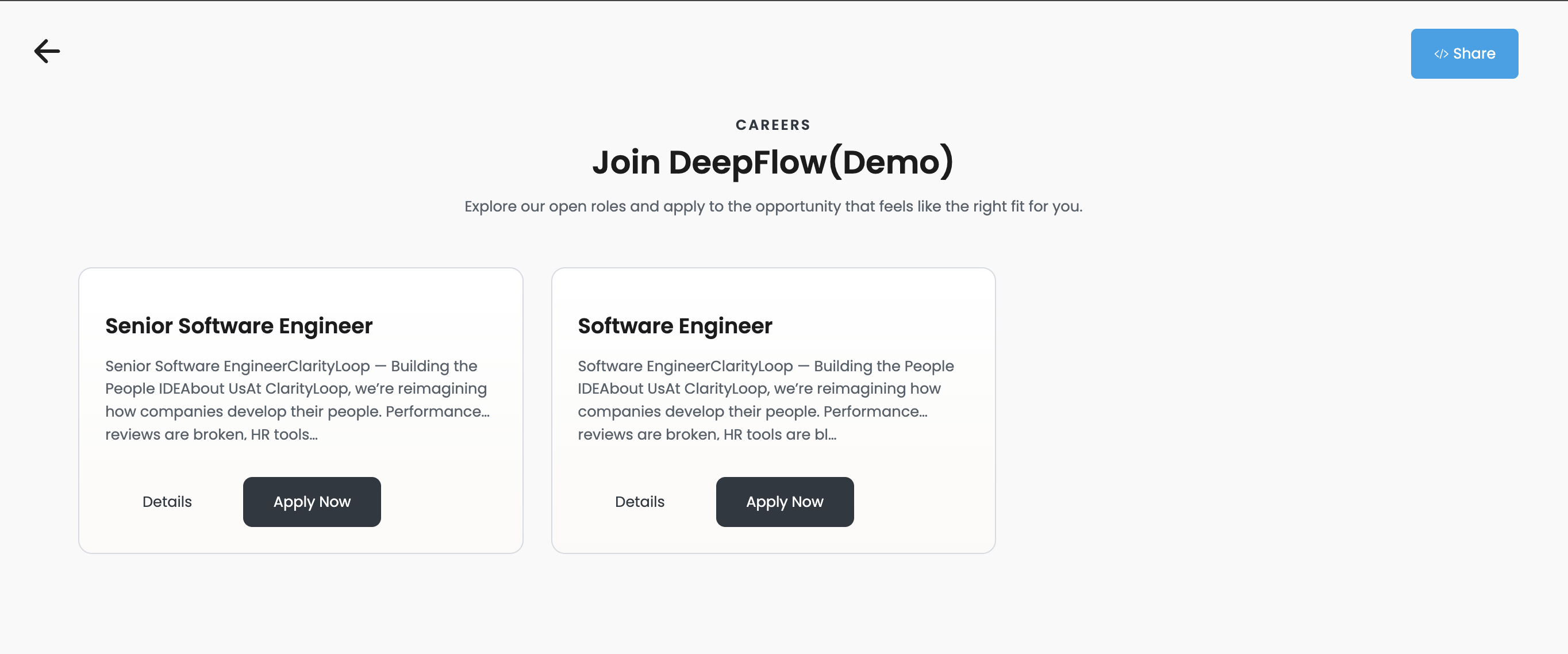
The careers page shows jobs that are active, published, and not closed.
Hiring admins can also use the careers page sharing tools to copy iframe embed code. This lets your company show the ClarityLoop careers page inside your own website.
If your company wants a friendlier public careers URL, contact support@clarityloop.com to request a company slug. Without a configured slug, public URLs use an encrypted company identifier.
If your company has its own external careers page, support can also configure that URL for back links and feed metadata.
Candidate application flow
When someone applies through the careers page:
- They submit the application form for a job.
- The candidate record is created inside Hiring.
- The candidate is placed into the job's first working stage.
- The candidate receives the configured application reply, or a default thank-you message.
- Automatic questionnaires are created when configured.
- The hiring team can continue the process from Hiring Pipeline.
Feeds and LinkedIn
Hiring can expose public job feeds for integrations and distribution.
Company LinkedIn Jobs XML Feed
This is a company-specific XML feed intended for LinkedIn job wrapping. It includes eligible public jobs for one company.
Jobs appear in this feed when they are active, published, and not closed. The company also needs LinkedIn feed configuration, including LinkedIn Company ID and Poster Email.
Contact support@clarityloop.com before configuring this feed in LinkedIn so the company settings can be checked.
Company RSS Job Feed
This is a standard RSS feed for one company's public job vacancies.
Use it for marketing, social media, automation, or website tools that can consume RSS job posts.
Consolidated LinkedIn Basic Jobs Feed
This is a ClarityLoop-wide LinkedIn Basic Jobs XML feed. Only companies explicitly enabled for LinkedIn Basic Jobs contribute jobs to this feed.
Contact support@clarityloop.com if you want your company included or want the feed configuration reviewed.
Talent Pool
Use Talent Pool to save promising candidates for future roles.
You can create named pools, then add candidates with context about why they should be revisited.
Advanced sourcing tools
Hiring includes optional sourcing helpers for resume-heavy workflows:
- upload resumes in bulk to a job
- compare uploaded resumes against the job's skills
- create candidates from matched resumes
These tools are useful when recruiters are working from an inbound resume batch.
FAQs
Why is a published job not visible on the careers page?
Check that the job is active, published, and not closed. If the job has an end date, confirm that the role should still be open.
Why can a hiring manager not see a job in the pipeline?
Check whether the person is assigned to the job's Hiring Team or to one of the job's stages as a Stage Owner. Users with broader recruitment permissions may see more than assigned managers.
Why can a stage owner not manage the expected candidates?
Check the candidate's current job and stage. Then confirm that the user is assigned as a stage owner for that stage, or as part of the job's hiring team.
Why is a candidate marked hired unexpectedly?
Check the candidate's current stage type. Moving a candidate into a stage with the Hired type marks them as hired.
Why is a candidate marked cancelled unexpectedly?
Check the candidate's current stage type. Moving a candidate into a stage with the Cancelled type marks them as cancelled.
Should I close, archive, or delete a job?
Close a job when applications should stop but the record may be needed again. Archive a job when it should leave active views but be kept. Delete only when the job should be permanently removed and deletion is allowed.
Should I cancel, archive, or delete a candidate?
Cancel a candidate when they are no longer progressing for a job. Archive them when the record should leave active views but be kept. Delete only when the record should be permanently removed and deletion is allowed.
Can we show the careers page on our own website?
Yes. Authenticated users can copy iframe embed code from the careers page share tools and paste it into the company website.
Can we use a friendlier careers page URL?
Yes. Contact support@clarityloop.com to request a company slug. If no slug is configured, the careers page uses an encrypted company identifier.
Can support configure LinkedIn and job feeds for us?
Yes. Contact support@clarityloop.com for LinkedIn Company ID, Poster Email, LinkedIn Basic Jobs, company RSS feed, or careers page URL configuration.
Why can a candidate not apply?
Check that the job is active, published, and not closed. Also check the job's candidate requirements, including whether resume or photo is required.
Can questionnaire templates be sent automatically and manually?
Yes. When a questionnaire is attached to a job, it can be configured to send automatically after application, allow manual sending later, or both.
Can email subjects use template variables?
Yes. Email template variables work in both the subject and the body, so subjects can include candidate or job context such as {{ instance.get_first_name }} or {{ instance.recruitment_id }}.